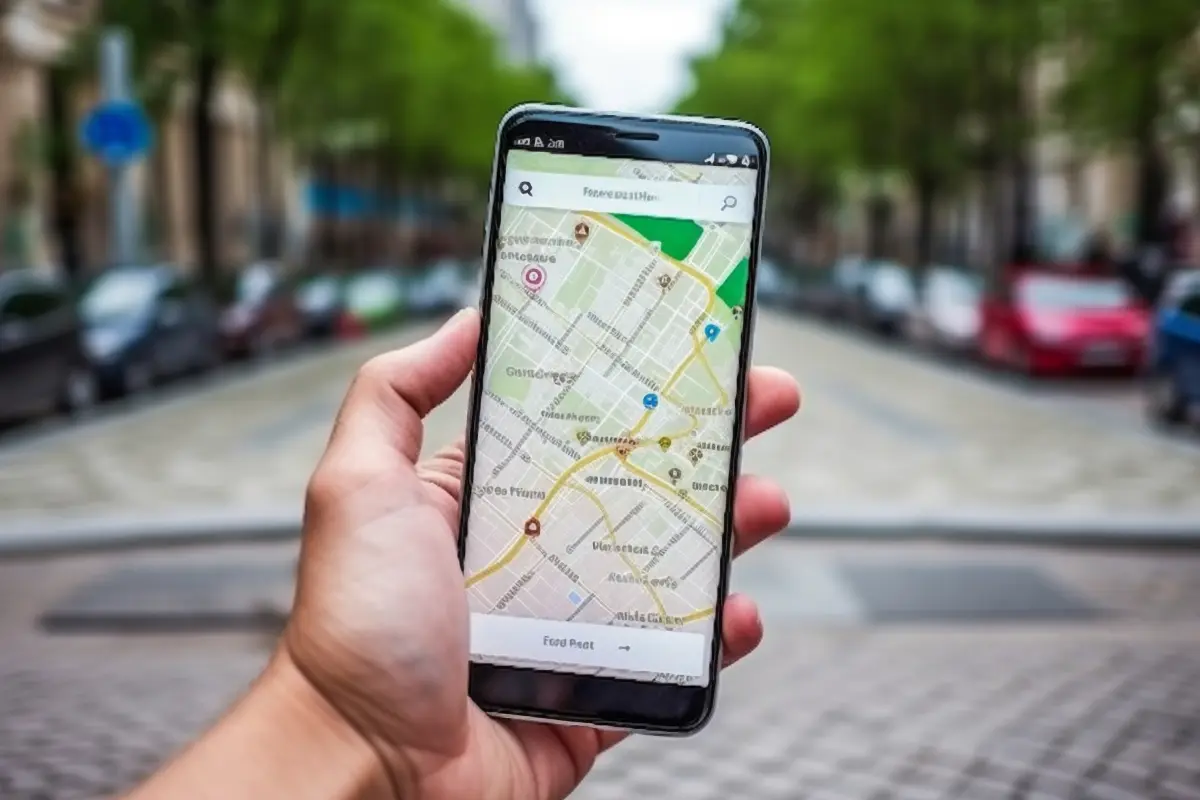
When someone nearby searches for "medical shop", "tailor" or "bike service", Google shows a map with a few businesses marked on it. Those businesses come from Google Business Profiles. These are free listings, and any business with a real place or a real service area can create one.
Many Nagercoil shops are already on the map, though the owner never set up anything. Google added them, or some customer added them. Such a listing may carry the wrong phone number, old timings or a pin in the wrong lane. You cannot correct any of that till you take control of it. Both cases are covered below, a fresh listing and taking over an old one.
Before you start
Keep these ready. Some mistakes in the form are hard to undo later.
- Your business name exactly as it appears on your signboard. Don't add anything extra to it, why we will tell further down.
- The full address, written the way customers and couriers usually write it.
- A phone number that is answered in business hours. Mobile number is also fine.
- A Google account owned by the business owner. Don't use one belonging to staff or to a developer, because they may leave one day.
- Your phone, charged, because Google may ask you for a verification video.
First, check whether you are already on Maps
Open Google Maps and search your business name with "Nagercoil". Suppose your shop comes up, don't make one more. With two listings your reviews get divided and customers get confused. Google may even remove both of them.
Open that listing and look for the claim option. Mostly it says "Own this business?" or "Claim this business". If nobody controls it yet, you can go directly to verification. Sometimes another person already manages it, like a former manager, a relative or an old web designer. Then you can request access, and Google gives that person some days to approve it. No reply in that time? Then there may be an option for you to claim it directly.
Creating a new listing, step by step
If no listing is there, go to Google Business Profile and choose to add your business. Search "Google Business Profile" and open Google's own site. Google will ask you for these details.
- Business name. Same as on your signboard and bills.
- Main category. Pick the narrowest one that is true for you. A child doctor should pick "Pediatrician" and not "Doctor". For a bakery it is "Bakery" only. Google checks this main one first. The extra ones you can put later on.
- Whether customers visit you. Answer yes if customers come to your shop, office or clinic in opening hours.
- Address and map pin. Type the address and then check the pin. Many times Google puts it in the middle of the street or the area. Drag it to your real entrance. In older parts of town several shops share one building number, so this step matters a lot.
- Service area, if you go to customers. Say you are an AC technician. You can list the towns or areas you cover. Electricians and caterers do the same.
- Phone number and website. No website yet means the box stays empty, that is okay. Don't put some old Facebook page nobody updates.
Verification: proving you are real
Till Google is satisfied that the business exists and you are the one running it, your changes will not show. Which options you get depends on your business type and location, and Google keeps changing them. These days mostly it is a recorded video. A phone call or text, an email or a live video call with Google support are the other ones.
The video is easy to do. Still many videos fail because the owner doesn't know what Google wants to see. Record in one continuous take with no cuts, covering these points.
- Show where you are. Begin outside the shop. Show the street and a nearby landmark or shop, then your signboard.
- Show the business is running. Walk inside to the counter. Let the camera see your stock, and your tools or machines if you have any.
- Show you are in charge. Unlock the shutter or the cash drawer, or open the back office. The stock room or the billing system also works, any place that only your staff can go into. Any tax number or ID number should not come in the video. Google asks for that, so keep those papers out of the frame.
Usually one or two minutes is enough, and record it in daylight. After you submit, the reply may come next day itself, or after a few weeks.

If you work from home or go to customers
A plumber, a tuition teacher who goes to students' houses, or a caterer cooking from home can also get a listing. Google calls them service-area businesses. You give your address for verification, then hide it from public view and show the areas you serve in its place.
One thing we tell every such client. The address you give has to be a place where you really work. A relative's shop, a rented letterbox or a co-working desk you never use will not be accepted. Google suspends listings for this, and getting reinstated takes long time.
Fill in the rest. It is what customers read.
After verification the listing goes live. Only name and pin will not bring many calls to your shop. Spend one hour on these.
- Opening hours, with the lunch break if you close for lunch. Before Pongal, Deepavali, Christmas and local festival days, add special hours also, so nobody comes all the way for nothing.
- Photos of the shop front as people see it from the road, and of the inside. Your products or work can go in, and your team also. Every month or two, add some fresh ones.
- Services or products, each with a short description. Add prices if you are okay to show them.
- A description of your work in simple words, written for your customers to read.
- Additional categories for the other things you really offer.
Mistakes that get listings suspended
- Extra words in the business name. A name like "Sri Murugan Mobiles Best Mobile Shop in Nagercoil" is against the rules. Just use "Sri Murugan Mobiles".
- Two listings for one business. A single shop gets one listing only. A real branch with its own staff and signboard can have a separate listing.
- Changing everything at once. Changing name, address and category all on one day can send the listing for a fresh review. Do the changes one by one.
- Listing someone else's address. Same problem as explained above.
After it is live
For the first month, check the listing once every week. Customers and Google both can suggest edits, and some are wrong. Reply to each review. At month end, open the figures. Calls, direction requests and website clicks show how many customers the listing is sending you.
After that comes the longer work. Ask happy customers for reviews every month. When something is new in the shop, post it. Also build a website that tells the same story as the listing.
Stuck at verification, or the listing is suspended?
We do setup, recovery and reinstatement of Business Profiles for businesses all over Kanyakumari district. Our local SEO page has the details, or you can tell us what is going wrong.
Written by The Webanzo team at Webanzo, Nagercoil. Spotted something out of date? Tell us and we will correct it.